QR menu
A code on the table. An order in the kitchen.
The guest scans the code, reads the menu in their language and sends the order. It goes straight to the kitchen and the till, linked to the right table.
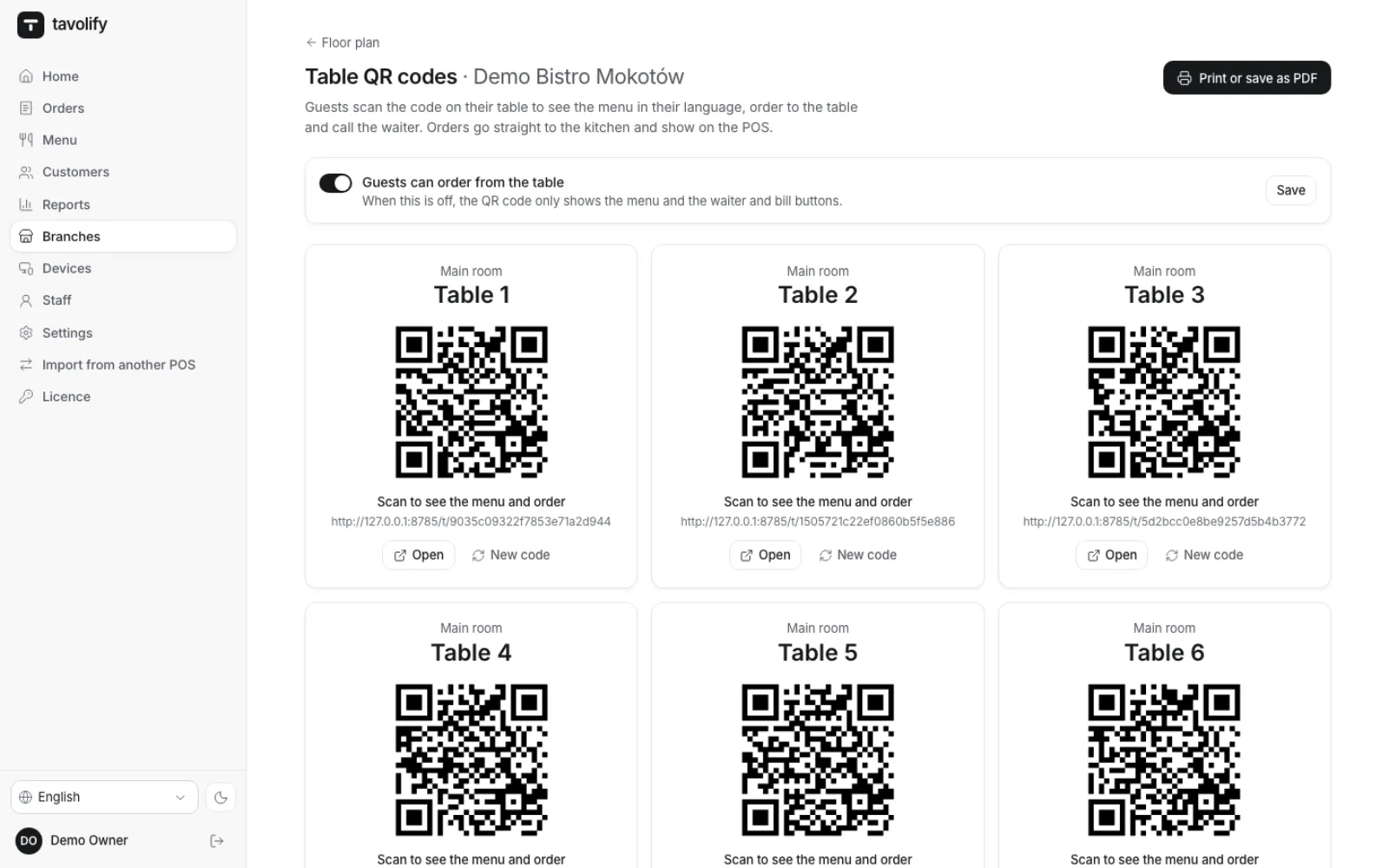
QR codes
Print codes for the whole room.
Every table has its own code. Print the sheet with every table’s code or save it as a PDF straight from the browser. A code can be replaced at any time, and the old one stops working.
- A code per table
- Print or PDF
- Replace a code
- One click
The order
The guest sees what happens in the kitchen.
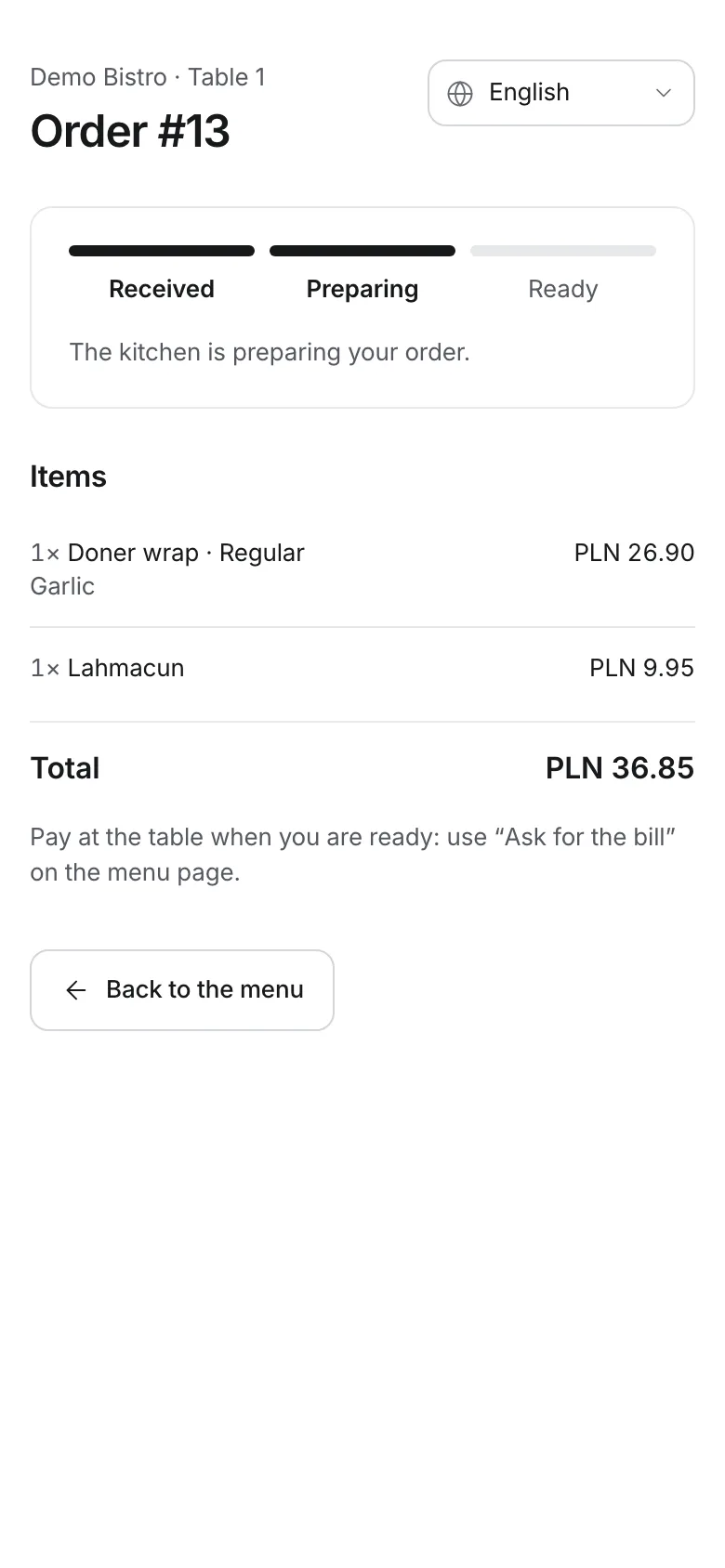
After sending, the guest gets an order page: received, preparing, ready, straight from the kitchen display. Option rules, prices and sold-out items apply exactly as on the till. They pay at the table when they ask for the bill.
- Status from the kitchen
- Prices as on the till
- Option rules
- Sold out hidden
Service
The waiter comes when needed.
“Call the waiter” and “Ask for the bill” put a badge on the table in the till’s floor plan. Tapping the table marks the call as answered. A QR order is a separate bill of the table on the till, paid and printed like any other.
- Call the waiter
- Ask for the bill
- Badge on the floor plan
- Separate bill
A menu guests actually read.
-
The guest’s language
The guest picks the menu language; item names and descriptions show in it when you have added them.
-
Allergens and tags
Allergens on every item and tags such as halal or vegetarian.
-
Photos and descriptions
Photos, descriptions, sizes and options, with the categories pinned at the top.
-
Your restaurant’s colour
The page takes your brand colour, and the text colour is chosen to stay readable.
-
Menu only
Switch off ordering from the table per branch; the menu and the call buttons stay.
-
Abuse protection
Order limits per table and per phone number protect the kitchen from fake orders.
Works well with
Run your venue on Tavolify this week.
Create an account, add your menu and connect your hardware. Or we show you the system with your own menu.
Free trial, no card needed.